
Canaview intraoral camera
The Beyes Canaview intraoral camera available through All Practice Solutions is designed to give clinicians the visual evidence they need to educate patients more effectively and support more accurate diagnoses chairside. Rather than relying solely on verbal explanations or static X-rays, the Canaview lets dentists show patients exactly what's happening inside their mouth in real time a capability that consistently improves case acceptance and patient trust, since people are far more likely to understand and commit to treatment when they can see the issue for themselves. A standout feature of the Canaview is its true auto-focus system, which eliminates the need for manual focus adjustments during image capture.
Choose options
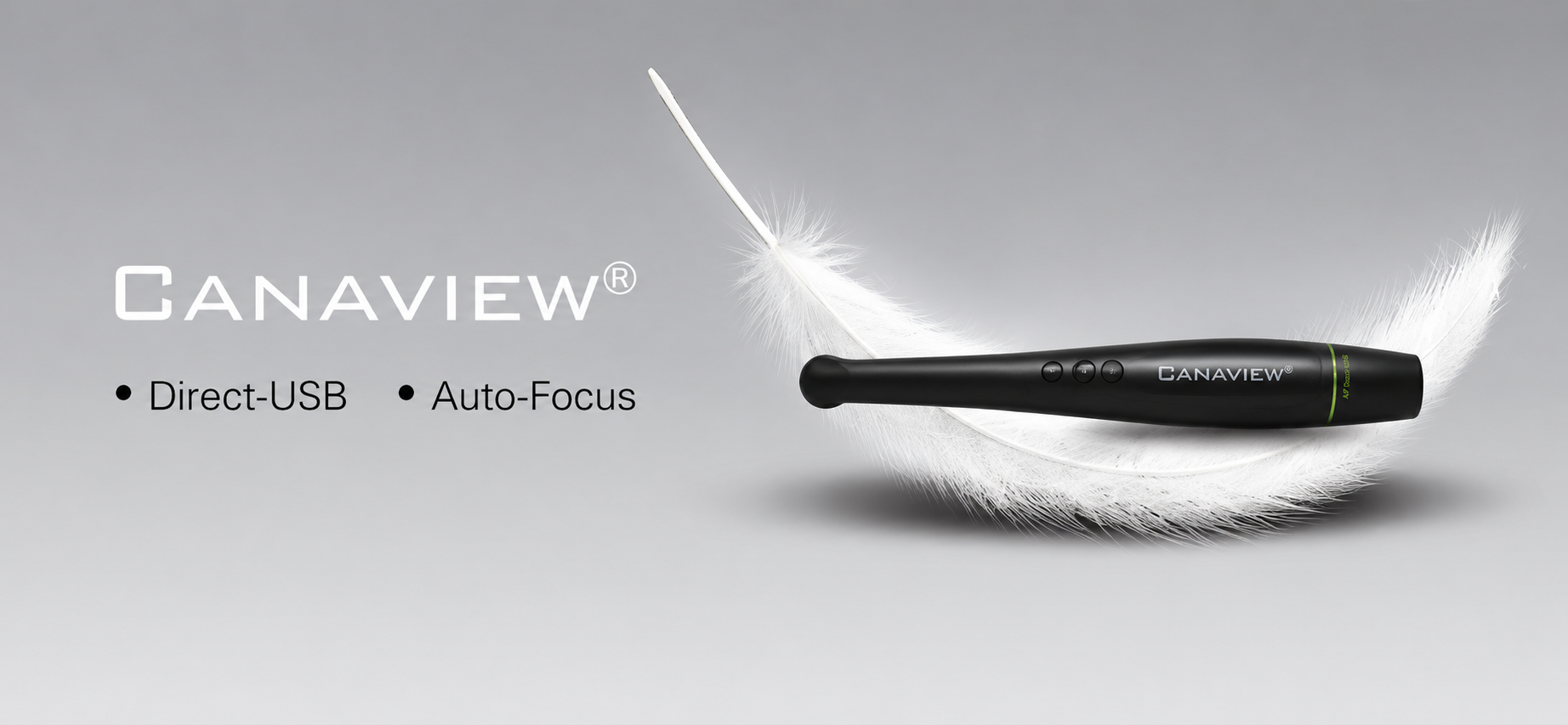
Key Features
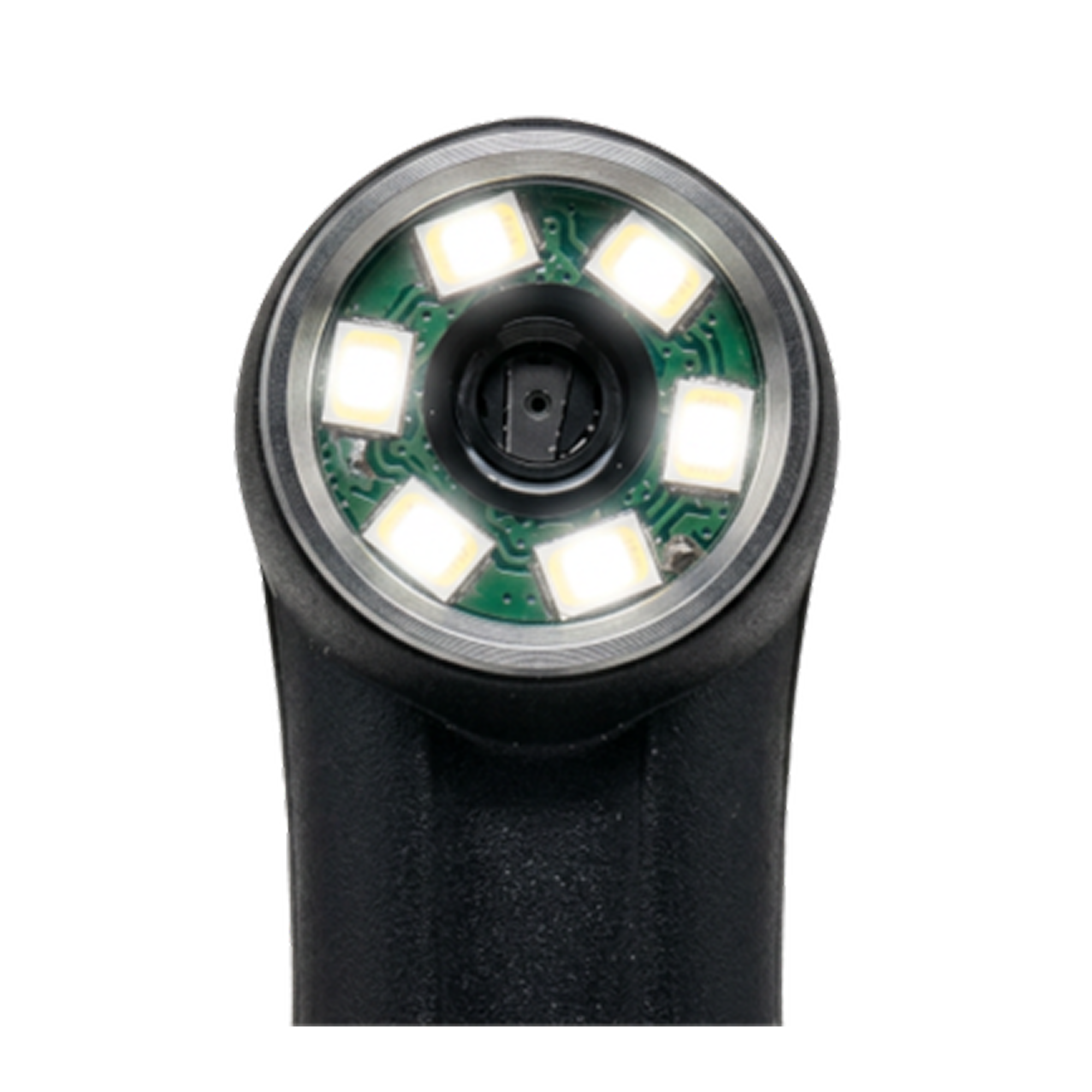
An excellent communication tool that improves understanding and interaction with patients. The Canaview intraoral camera provides visual evidence that you need to educate patients and make more accurate diagnoses. Boasting a true auto-focus and intuitive camera lighting system, this dental digital photography camera requires no manual adjustments and is easily shared between different examination rooms and chairs.

Ultra-wide and non-spherical lensInnovative anti-fog design

Direct USB connection to computer

High resolution images

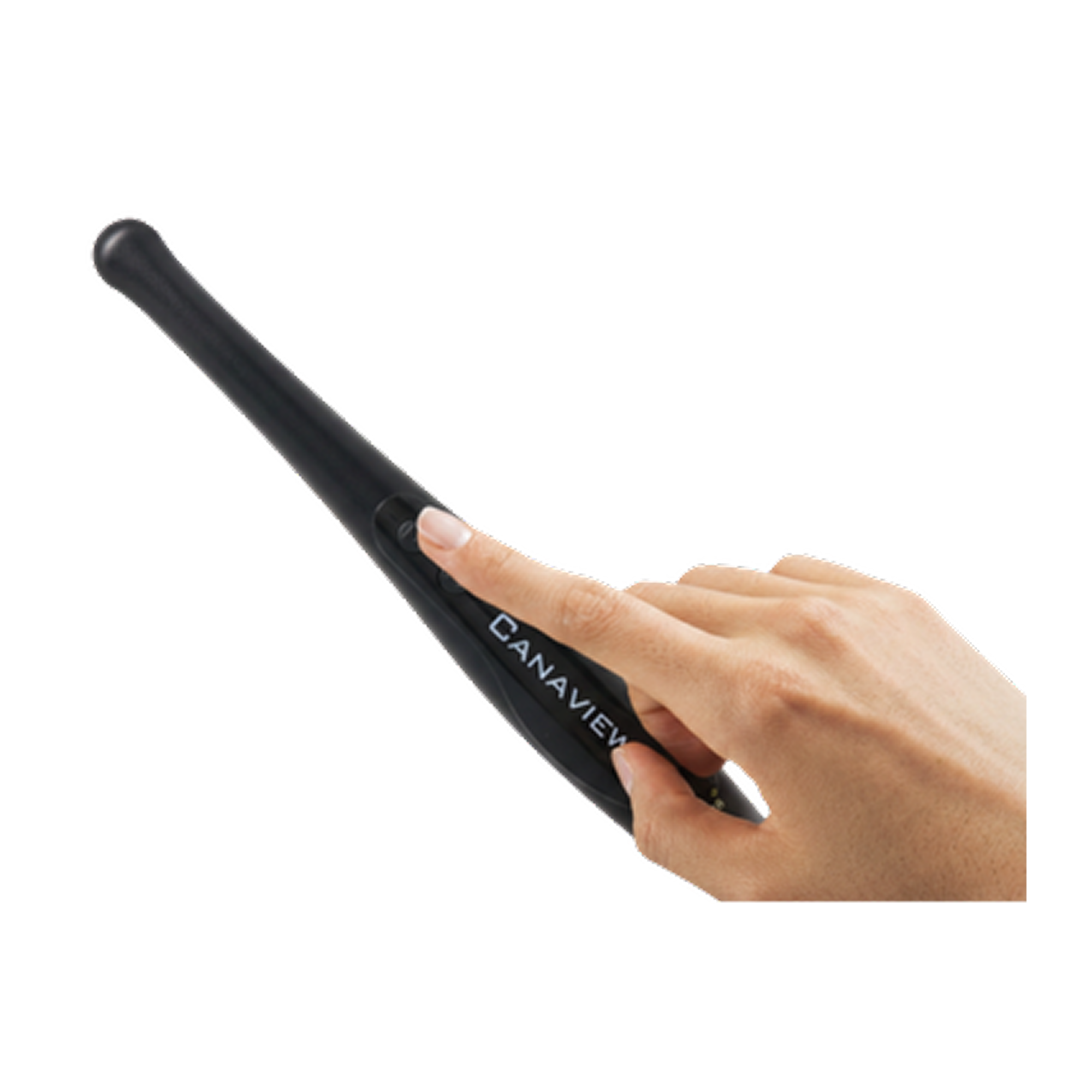
Responsive capture button

Complimentary Image Management Software
Compatible with major imaging software: AbleDent, Apteryx, Adstra, CaptureLink, CliniView, Cleardent, DentiMax, Digora, Dexis, Eaglesoft, Owandy, ProfSuni,and more...

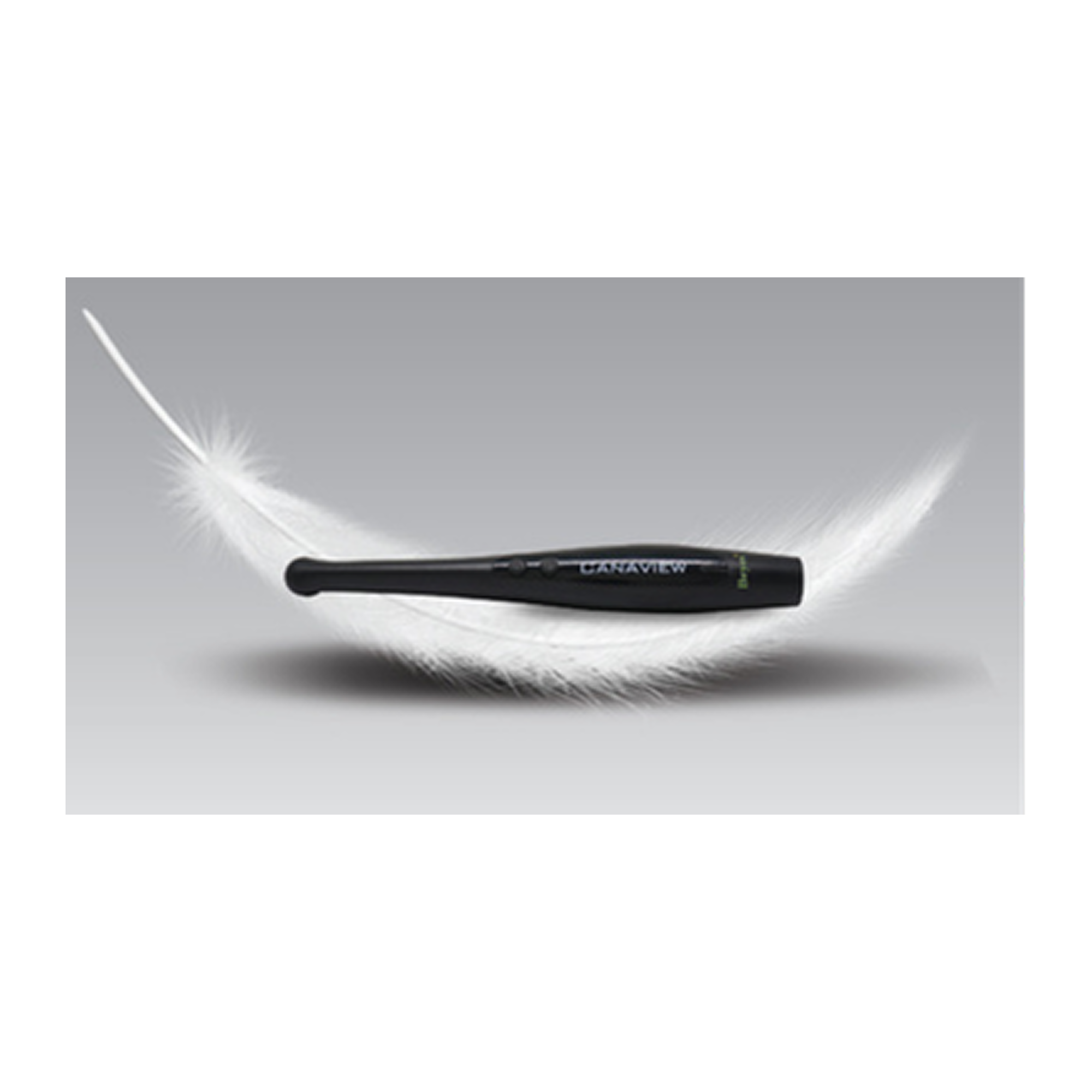
Super light-weight body
Key Specification
| Focus type | Auto |
| Focus range | 4mm - 60mm |
| Connection type | USB to computer |
| Resolution | 1600 x 1200 |
| Camera Length | 20cm |
| Weight | 35g |
| Cable Length | 2m |
| Power | DC 5V+/-0.5V(1.5A) |
| Operating system | Windows 10/8/7/VXP/Vista (64/32 bit) |
| Warranty | 12 months |
Order Info
Code: EV2060
Model: Canaview Intra Oral Camera
Description: Direct-USB, Auto-Focus
Downloads
How to Set up
Step 1 – Download the Button Capture Software
Before plugging in the camera, we need to download and install the Canaview Capture Key Integration Software to setup the button on the device. The button on the Canaview needs to be integrated with your imaging software for Canaview device to function.
Canaview Capture Key Integration Software
• Click "Canaview Capture Key Intergration software"
• Run the .exe file
• Follow the prompt then you’ve successfully installed Canaview integration software
Step 2 – Choosing your imaging software
Once the Canaview Capture is installed and running it will appear on your taskbar in hidden icons.
Right clicking on the icon will bring up a list of imaging software.
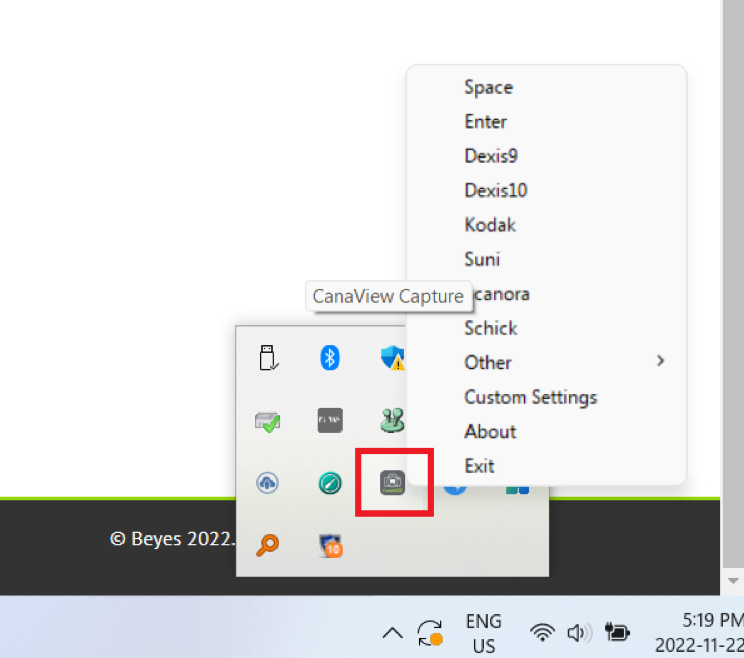
Select your imaging software from the list of options. If you do not see the imaging software you want to use but know the corresponding capture key for your imaging software, you can simply create your own custom option by selecting "Custom Settings."
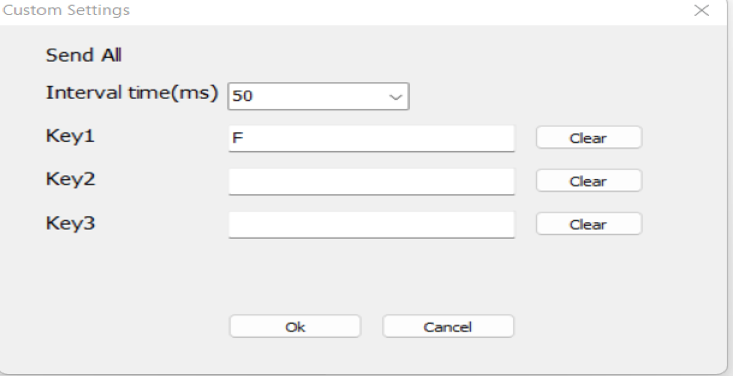
Step 3 - Plug in the Canaview Camera
Make sure the Canaview is connected to the USB cable and plug it into the computer USB port.
Step 4 – Windows Recognizes the Canaview
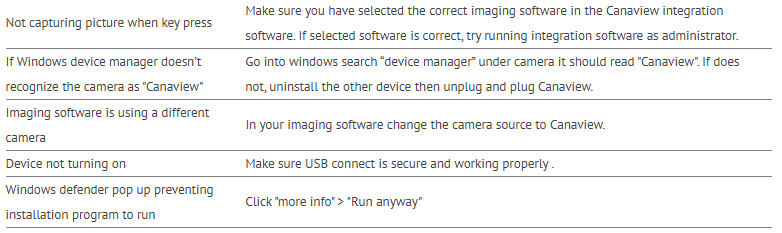
Once the Canaview camera is plugged, windows should recognize the hardware device as "Canaview". To check this go to device manager > Camera. It should read "Canaview", if windows recognize the camera as “USB Video Device”, please see our Troubleshoot at the end of the document.
Step 5 – Test the Canaview Camera With your Corresponding Imaging Software
The Canaview Camera is now set and ready to be used with your corresponding imaging software, please test the Camera by opening up your imaging software and set/select the video camera source. If you need help with how to access and setup the video camera with the imaging software of your choosing, please visit our website for further assistance. A partial list of software compatible with the Canaview Camera may be found below, if the software you are using is not listed, please check with the provider of the software for details on assistance for setup.
All Set!
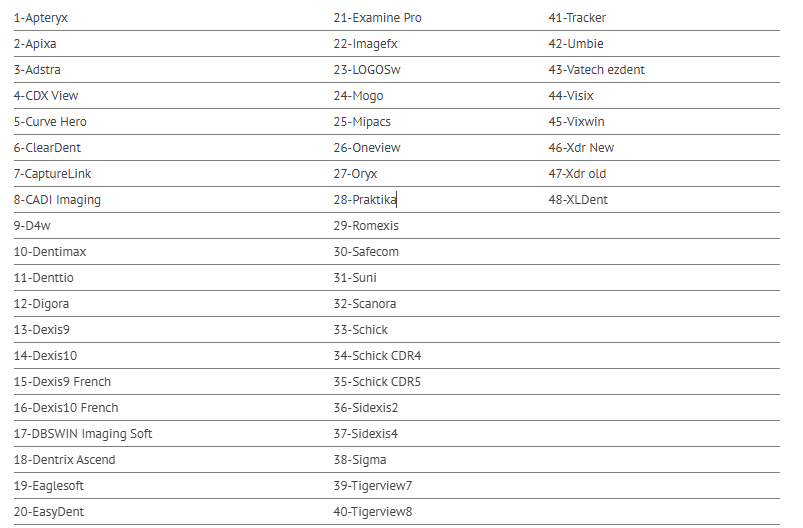
Partial list of imaging software that has been tested to be integrated with Canaview Capture, more will be added.
Troubleshoot Canaview Camera
Integrations
Integrating Canaview with Adstra
Integrating Canaview with APIXIA
Integrating Canaview with Apteryx
Integrating Canaview with Centaur Media
Integrating Canaview with CurveHero
Integrating Canaview with Cliosoft
Integrating Canaview with Dentrix Ascend
Integrating Canaview with Dentiview
Integrating Canaview with DentCapture
Integrating Canaview with Dentimax
Integrating Canaview with Dexis 10 and 11
Integrating Canaview with Ezdent-i
Integrating Canaview with EagleSoft
Integrating Canaview with Examine Pro
Integrating Canaview with Kodak KDI (Carestream)
Integrating Canaview with Open Dental
Integrating Canaview with MacPractice
Integrating Canaview with MOGO
Integrating Canaview with Prakitika
Integrating Canaview with Prof.suni
Integrating Canaview with Romexis
Integrating Canaview with Scanora
Integrating Canaview with Schick CDR5
Integrating Canaview with Sidexis 4
Integrating Canaview with SoPro
Integrating Canaview with TigerView8
Integrating Canaview with Visix
Integrating Canaview with VixWin
Integrating Canaview with XDR
Integrating Canaview with XVCAPTURE
Software Downloads


All Practice Solutions is a trusted provider of high-quality dental solutions. We specialize in CBCT scanners, dental microscopes, digital imaging solutions, dental chairs, X-ray generators, and more to meet the needs of modern dental practices. Additionally, we also provide expert dental SEO, website design, and digital marketing services. Learn more through our Privacy Policy, Refund Policy, Terms & Conditions, Terms of Service, Cookie Policy & Accessibility Statement for support and assistance. Contact us today for innovative solutions and expert services!
Powered by
 Sitemap © Copyright 2026 - All Rights Reserved
Privacy Policy |
Terms and Conditions
Sitemap © Copyright 2026 - All Rights Reserved
Privacy Policy |
Terms and Conditions
